App Lock and Fingerprint Lock (AppLockZ) Review: A Practical Way to Protect Your Android Privacy
App Lock and Fingerprint Lock (AppLockZ) Review: A Practical Way to Protect Your Android Privacy
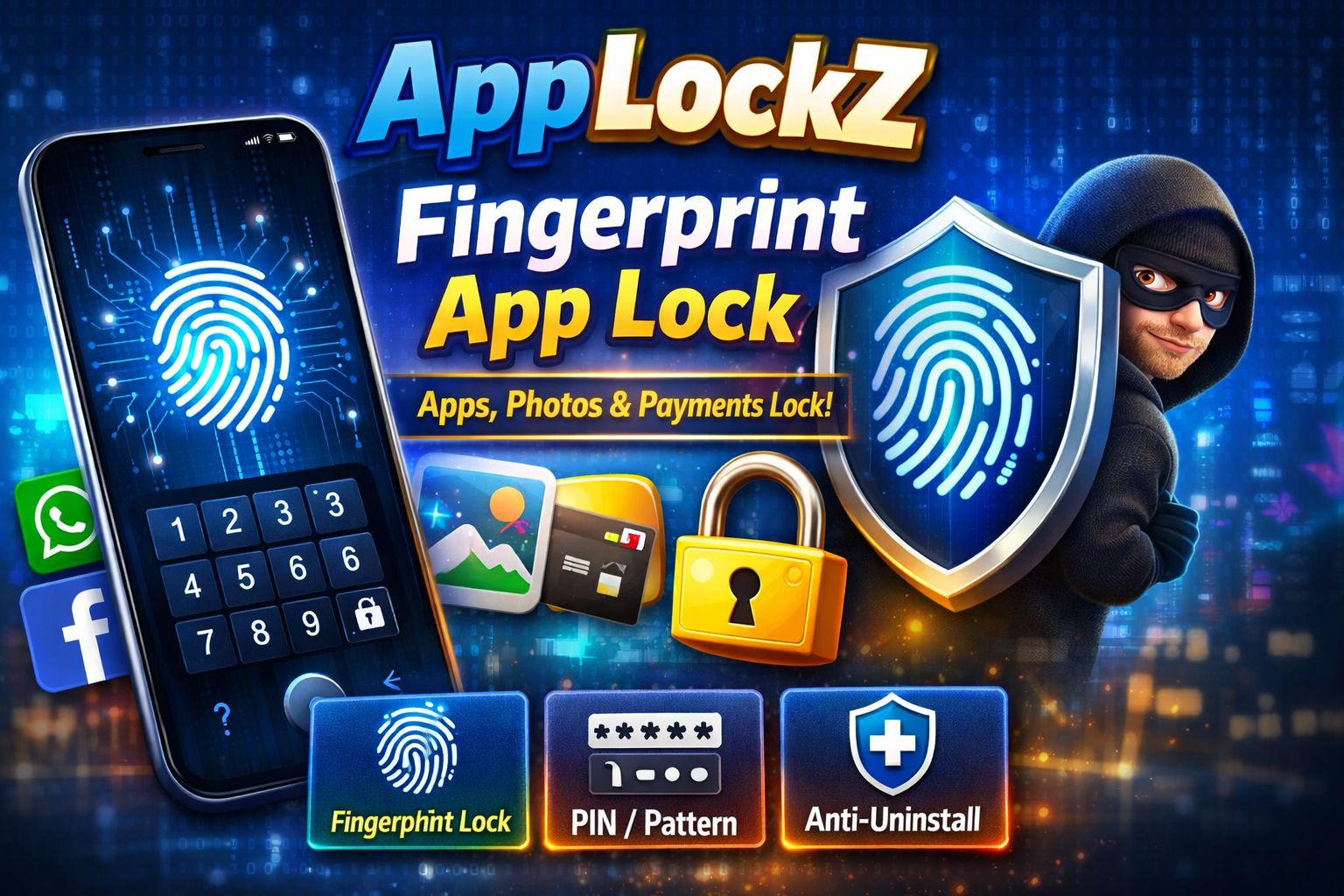
on top of your device’s screen lock. App Lock and Fingerprint Lock by AppLockZ – TrustedApp is built to
lock selected apps (social, gallery, settings, and more) using fingerprint, password/PIN, or pattern,
while adding extra security features like prevent uninstall, icon camouflage, and a random numeric keypad.
App details such as features and update date are based on the Google Play listing (updated Dec 16, 2025).
Table of Content
What App Lock and Fingerprint Lock (AppLockZ) Is (and Who Needs It)
AppLockZ is an Android app locker designed to restrict access to specific apps you choose—such as messaging apps,
social media, photo/video gallery, contacts, settings, and even call-related apps—so others can’t snoop when your phone is unlocked.
According to its store description, it’s aimed at situations like:
- Friends or relatives borrowing your phone and opening private apps
- Children tapping around and changing settings
- Protecting conversations, social accounts, photos, videos, and sensitive tools (including payment apps)
Why this matters:A screen lock protects the whole device, but once you unlock it to show someone a photo or make a call,
they may still be able to open other apps. AppLockZ helps reduce that risk by locking only the apps you want.
they may still be able to open other apps. AppLockZ helps reduce that risk by locking only the apps you want.
Top Features That Matter for Android Security and Privacy
1) Multiple Lock Methods: Fingerprint, Password/PIN, and Pattern
AppLockZ supports common lock types including fingerprint, password/PIN, and pattern.
Fingerprint unlock typically requires compatible hardware and is commonly limited to Android 6.0+ devices with an active fingerprint sensor.
2) Lock Popular Apps (Social, Messaging, Gallery, Settings)
The app is commonly used to lock apps like WhatsApp, Facebook, Instagram, Snapchat, Messenger, Contacts, Gallery, and Settings—plus any
other apps you select. This is useful if you want a dedicated WhatsApp lock or Gallery lock without restricting your whole phone.
3) Prevent Uninstall (Anti-Tamper Protection)
A typical weakness of basic app lockers is that someone can attempt to uninstall or disable them. AppLockZ advertises a
Prevent Uninstall feature to help reduce that risk.
4) Camouflage Icon (Hide the App Lock App)
If someone knows you use an app locker, they may try to find it. AppLockZ includes an icon camouflage feature that can replace
its icon with another, making it less obvious on the home screen.
5) Random Numeric Keypad (Reduce Shoulder-Surfing Risk)
A small but smart feature: a random keypad changes number positions to reduce the chance of someone memorizing your PIN by watching you type.
This can be helpful in public places or shared environments.
Best Use Cases: Privacy, Parental Control, and Payment Protection
Protect Private Chats and Social Media Accounts
If you hand your phone to someone to view a photo or make a quick call, an app lock helps prevent “just one second” browsing of
your chats, DMs, or social feeds. This is especially useful for users who want a dedicated privacy app for personal accounts.
Stop Kids from Changing Settings or Buying In-App Items
Many parents look for parental control tools that block Settings, Play purchases, or games with payment options.
AppLockZ positions itself as a way to lock apps that can trigger unintended purchases—helping reduce accidental payments.
Secure Banking, Wallets, and Payment Apps
Locking finance-related apps adds another barrier if your phone is temporarily unlocked. While it’s not a replacement for bank security,
an app lock can be a practical extra step for mobile banking security and digital wallet protection.
How to Set Up AppLockZ the Right Way (Quick Guide)
- Install and open AppLockZ, then choose your lock method (PIN/pattern/fingerprint if supported).
- Select apps to lock (messaging, gallery, social, settings, banking—whatever you want protected).
- Enable fingerprint unlock only if your device has a fingerprint sensor and it’s active in Android settings.
- Turn on extra protections like “Prevent Uninstall” and consider “Camouflage Icon” for stealth.
- Test your locks by closing and reopening locked apps to confirm everything works as expected.
Tip: If you use fingerprint unlock, keep a strong backup PIN/password. Fingerprint is convenient, but the backup credential is the true key.
Security Tips: Make Any App Lock More Effective
- Use a long PIN (6+ digits) or a strong password instead of simple patterns.
- Lock Settings to reduce chances of someone disabling permissions or removing the app.
- Enable random keypad if you often unlock apps in public.
- Review permissions and data safety info inside Google Play before installing any security app.
- Keep your phone updated (Android security patches matter more than any single app).
Pros & Cons (Honest Snapshot)
Pros
- Locks many app types (social, gallery, settings, calls)
- Multiple lock options: fingerprint/PIN/pattern (device dependent)
- Extra protections: prevent uninstall, icon camouflage, random keypad
- Useful for shared-phone scenarios and parental control basics
Cons
- Fingerprint features depend on hardware + Android version support
- As with most app lockers, performance can vary by device/OS behavior
- Advanced security still depends on your overall phone security (updates, screen lock, safe installs)
Frequently Asked Questions
Is AppLockZ a replacement for Android’s screen lock?
No. It’s best used as an extra layer. Your screen lock protects the device; AppLockZ helps protect selected apps after the phone is already unlocked.
Does fingerprint lock work on every phone?
Fingerprint unlock generally requires a built-in fingerprint sensor and compatible Android support (often Android 6.0+). If your device doesn’t support it,
you can still use PIN/password or pattern.
What apps should I lock for maximum privacy?
Most users start with messaging (WhatsApp/Telegram), Gallery/Photos, Social apps, Email, Settings, and any banking or payment apps.
Will “camouflage icon” improve security?
It can help reduce casual tampering by making the locker harder to spot. It’s not “invisible security,” but it can discourage quick attempts to disable the app.
Final Verdict: Who Should Download App Lock and Fingerprint Lock?
If you want a straightforward app lock for Android with modern convenience (fingerprint where supported) and practical add-ons like
random keypad, prevent uninstall, and icon camouflage, AppLockZ is a solid option to consider—especially
for users who share phones, manage kids’ device access, or want extra privacy for chats, photos, and payment apps.
Always install from the official Google Play listing, keep Android updated, and choose a strong PIN/password for the best protection.